How to save articles for later in Chrome, and find them again
By Aura Reader Team · 2026-09-06 · 5 min read · Updated 2026-10-03
An interesting article arrives while you are doing something else. You leave the tab open, then open a few more. By the evening, the piece you wanted to read is somewhere behind your email. Saving it to a named place is a small improvement: you can close the tab and know where to look later.
Chrome bookmarks, Chrome's Reading List and a separate reader solve different parts of that problem. You do not need a new app just to remember a URL. Aura becomes useful when you also want a reading view, a personal library and notes beside the text.
Choose the lightest option that does the job
- A Chrome bookmark: keep the address of a page you want to revisit. A folder called Reading is enough if you only save a few links.
- Chrome Reading List: keep pages you intend to read separate from your general bookmarks, with read and unread states.
- Aura: save links to a reading library, open supported articles in a clean view and keep highlights and notes while signed in. PDFs and EPUB books can live in the same library.
For a normal bookmark, select the star beside Chrome's address bar. Google's help page explains how to find and organise those bookmarks. For the browser's Reading List, use Chrome's Bookmarks and lists menu; labels and availability can differ across devices and versions.
Google's guide to Chrome bookmarks
Google's guide to Reading List
Save an article with the Aura Chrome extension
Install Aura from the Chrome Web Store using the link on our extension page. Pin it to the toolbar if you want the button within reach. Sign in to Aura in the same browser profile, then open a public article you want to keep.
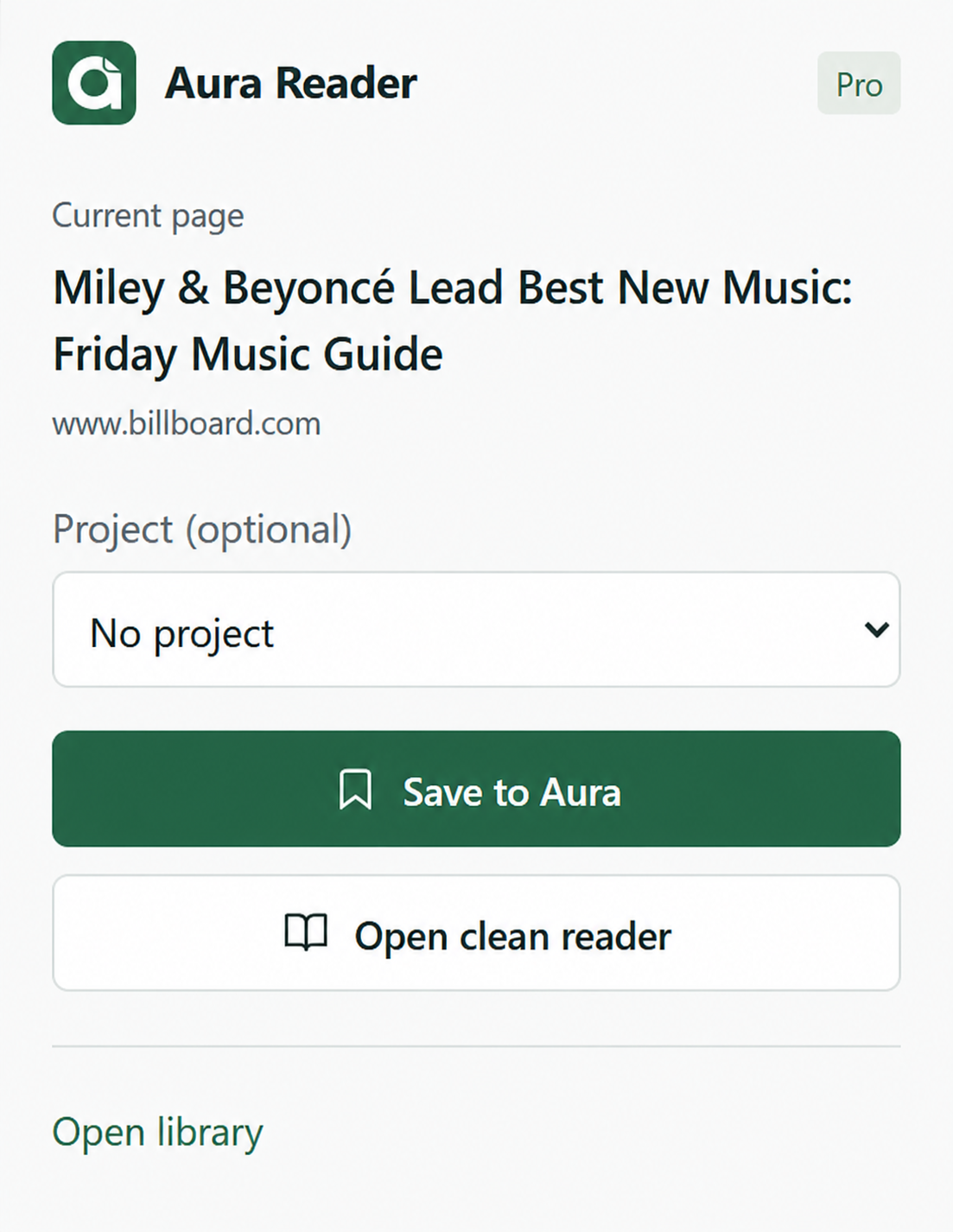
- Click the Aura icon while the article is the current tab.
- Choose Save to Aura. A project is optional; you do not need one for everyday reading.
- Wait for the saved confirmation. Clicking the button is not, by itself, confirmation that the request succeeded.
- Choose Open library to check the article is there. You can then close the publisher's tab.
Open clean reader is a separate action. It opens a supported page for reading now; do not assume that opening a reader also saves the article to your account. You can try the clean reader without an account, but cloud saving requires sign-in.
What exactly did you save?
A bookmark stores a link and details such as the title. Opening it later may require fetching the publisher's page again. It is not the same as storing a copy of the article's text. If the source changes, disappears or blocks extraction, the bookmark cannot guarantee access to the old text.
Saving full article text to Aura's cloud library is a Pro feature. Use the full-text save action in the reader when you want that copy, and check that saving succeeded. Neither a bookmark nor a full-text save gives you a publisher subscription or access to content you are not entitled to read.
Free currently supports five active cloud bookmarks. Saving another article at the limit can automatically archive an older unread item. Archived bookmarks are subject to cleanup after 30 days, including on Pro. Do not use the archive as a permanent backup of important sources.
Compare the current Free and Pro plans
Return to one article, not another feed
Open your Aura library and choose an unread article or one you have already started. Adjust the font and theme after opening it. If a passage is worth keeping, select it and save a highlight with an optional note. Those notes give you another way back to the part that mattered.
For a simple reading routine, choose one saved article before browsing for anything new. When you finish, mark it done. This is a suggestion for using the library, not an automatic reading schedule or a promise that an app will create the habit for you.
How highlights and notes work in Aura
Only need a cleaner page? Compare Chrome Reading mode with a separate reader
If saving fails or the article is missing
Check that you are signed in to the right Aura account in the same Chrome profile as the extension. If the session has expired, sign in again and retry. A library-limit message needs a different response from a connection error: check your active items or plan rather than repeatedly clicking Save.
If the link was saved but its text will not open, try the original page. Some publishers block extraction, and account-only pages may not be readable outside the publisher's site. Keep the source link so you can check images, tables and passages that did not survive extraction.