How to open an EPUB file in Chrome without installing an app
By Aura Reader Team · 2026-09-06 · 5 min read · Updated 2026-10-03
You have downloaded a book, but opening it takes you to an app chooser instead of the first chapter. An online EPUB reader gives you another route: open a website in Chrome and upload the file there. With Aura, you sign in, add a DRM-free EPUB and read its text in the browser. You do not need to install a desktop reading app or the Aura Chrome extension for this.
Before you upload your book
Check the file extension first. Aura accepts .epub and .pdf uploads, not .mobi or .azw. A book downloaded from a shop or borrowed from a library may require that provider's app because of DRM. Owning or borrowing a title does not necessarily mean you have an unprotected EPUB that another reader can open. Aura does not remove that protection.
File uploads require an Aura account. Free accepts files up to 3 MB each; Pro raises that limit to 50 MB per file. This is an account upload, not a promise that the book stays only on your computer. Use a file you are allowed to upload and keep your original download as a separate copy.
1. Sign in and choose your EPUB
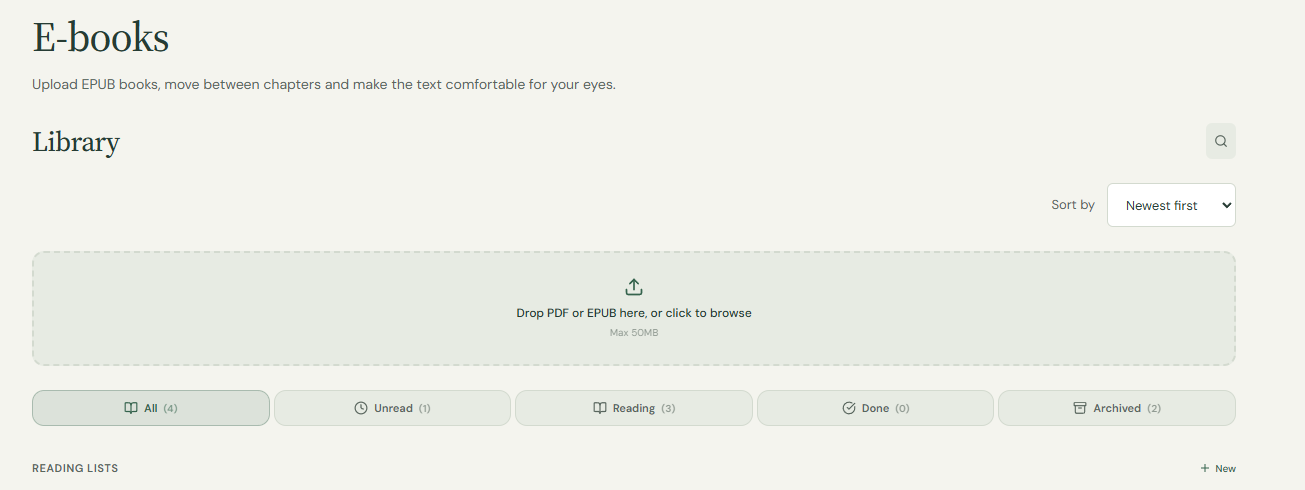
Open Aura and sign in before selecting the file. Go to the capture area on the home page and choose Add a PDF or EPUB. Select your .epub file and wait for the upload and text extraction to finish. If you selected a file while signed out, complete sign-in and choose the file again.
2. Make the first chapter comfortable to read
Start with the font size. Read a paragraph before changing anything else, then try a light, dark or warm theme. An EPUB can contain text that reflows to fit the screen, unlike a fixed printed page. Aura extracts readable chapters; it does not promise to reproduce every publisher's typography, illustration or complex layout.
Use the chapter links included in the book when they are available. If you would rather turn pages than scroll, open Reading options and choose Ebook. That control changes the presentation of the text. It is not the upload button, and it does not create an EPUB file.
See what each reading option does
Next: highlight an EPUB passage and save a note
3. Leave yourself a reason to return
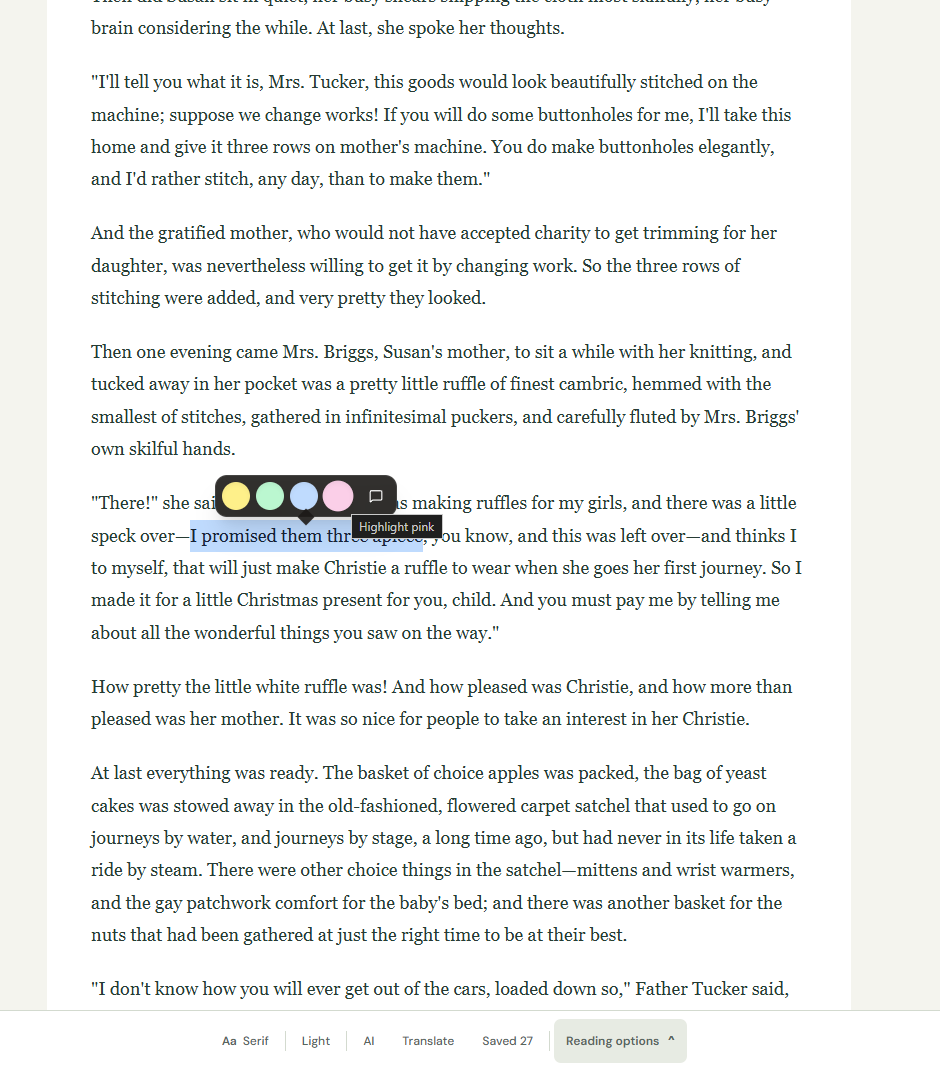
When a sentence matters, select its text and save a highlight. Add a short note if you want to remember why you marked it. For example, a note might name the question a passage answered or the idea you want to discuss later. You do not need to annotate a whole chapter to make the book useful.
Your uploaded book appears in the E-books section of your library. Open it there next time rather than uploading another copy. Aura tracks reading progress for saved items, but keep in mind that changing text size or switching reading views can change where a passage sits on the screen.
Open the E-books section of your library
If the EPUB will not open
- Check the file size against your plan's upload limit. Illustrated books can be much larger than text-only books.
- Check that you downloaded the book itself. A licence file or a link to a shop is not an EPUB.
- If the book requires a provider's app, use that app. Aura cannot unlock DRM-protected purchases or loans.
- Try downloading the original file again if it appears incomplete. Renaming a different file to .epub does not convert it.
- If only part of the book appears, compare it with the original in another compatible reader. A malformed chapter or complex layout can affect extraction.
When another reading app is a better choice
Use the publisher's reader for protected books, or a dedicated app when you need dependable offline access or exact support for a particular book's layout. Aura is for keeping readable EPUB text beside your articles and PDFs in a browser-based library. We do not promise that your entire Aura library is available offline.
If you want to understand the format itself, the W3C EPUB specification describes how a publication packages its text and other resources. You do not need to understand that structure to read a supported file.