How to highlight EPUB books and take notes in your browser
By Aura Reader Team · 2026-10-03 · 5 min read
A highlighted sentence is useful when you can find it again. If you read EPUB books on your computer, you can keep those passages and your notes in a browser library rather than copying quotes into a separate document. This guide uses Aura. You need an account and an EPUB that the reader can open.
Start with a book you can upload
Choose a DRM-free .epub file that you have permission to upload. A protected purchase or library loan may only work in its provider's app. Aura does not remove DRM. Uploading also sends the book to your Aura account; it is not a local-only file viewer. Keep your original file separately.
Free accounts accept files up to 3 MB each. Pro accepts up to 50 MB. You do not need the Chrome extension to upload a book: sign in, open E-books in your library and use the PDF or EPUB upload area. Open an existing copy from the library if you have already uploaded it.
Need help with the upload? Read the EPUB opening guide
Select the passage, then choose a colour
Open the book and drag across a short passage. The selection toolbar offers highlight colours and a note control. Choose a colour to keep the passage. Start with a sentence rather than a whole page: it is easier to check that you selected the text you intended.
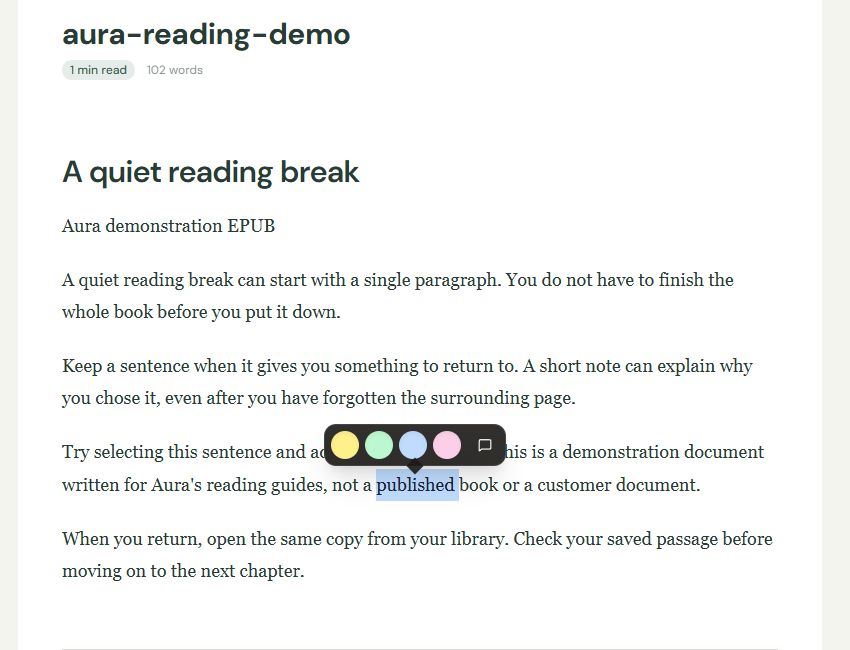
If the toolbar does not appear, try a plain paragraph in the standard scrolling view. Words inside an illustration are not necessarily selectable text. Changing the font size or switching to a paged view can move a passage on screen, so do not use a screenful as a permanent page reference.
Write the thought that the quote will not explain
Use the note control when you want to keep more than the quote. A useful note might say, "Compare this explanation with the next chapter" or "This answers my question about the narrator." Those are example notes, not a prescribed system. Write enough that you will understand yourself next week.
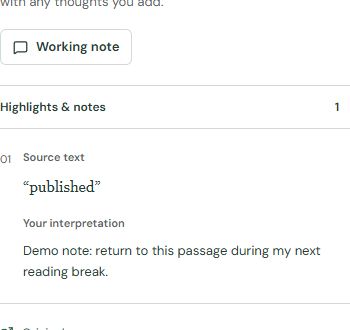
Save the note before leaving the editor. A selected passage is not proof that a note reached your account. Check the saved entry, especially if your connection has dropped or your session has expired. If Aura shows an error, keep a temporary copy of a long note before trying again.
Download the short demonstration EPUB used here
Find the passage when you come back
Open Highlights & notes in your library to review what you saved. Keep the same book entry rather than uploading the EPUB again every time. A second upload can create a separate library item, which makes it harder to tell which copy contains your annotations.
Review your highlights and notes
Try this with one passage first: save a short note, return to the library and check that you can see it there. That small check is worth doing before annotating an entire chapter.
What happens to the original EPUB?
Treat your Aura annotations as entries in your reading library, not as edits embedded in the original EPUB. Do not assume another ebook app will display them when you open your original download. If you need to hand annotations to someone else, check the export options for that workflow before relying on them.
Aura extracts readable book content. It may not reproduce a publisher's complex layout or every illustration exactly. Keep the original nearby when a diagram, footnote or page design matters. For a protected book, the provider's reader is the appropriate place to read and annotate it.
See how annotations differ for articles, EPUB and PDF
Working with a PDF instead? Check why its text may not select